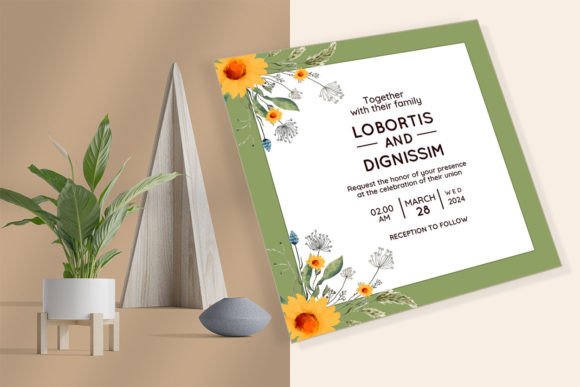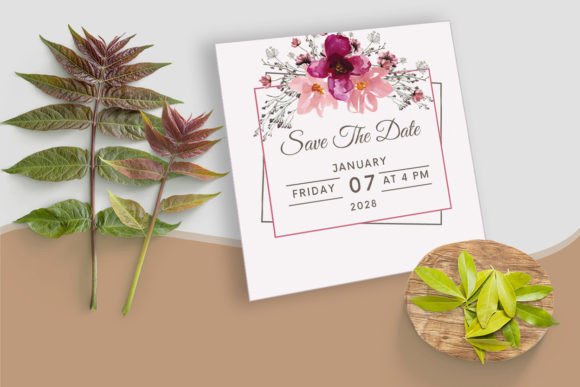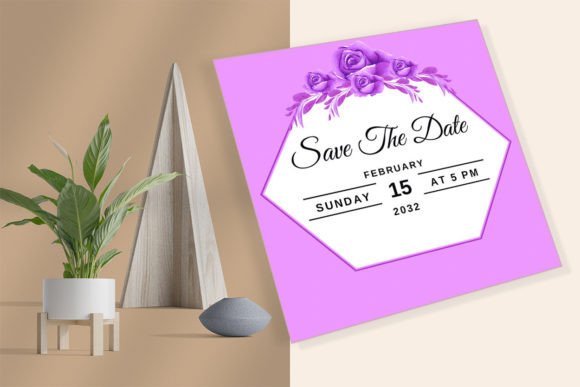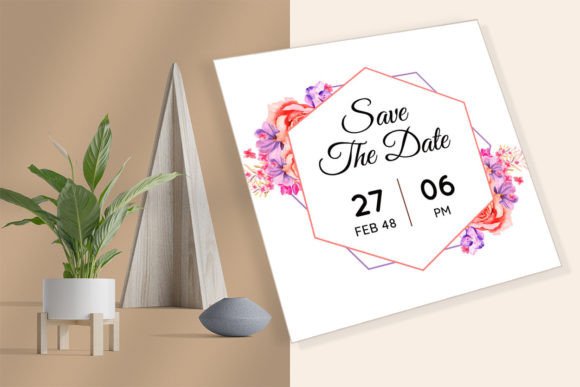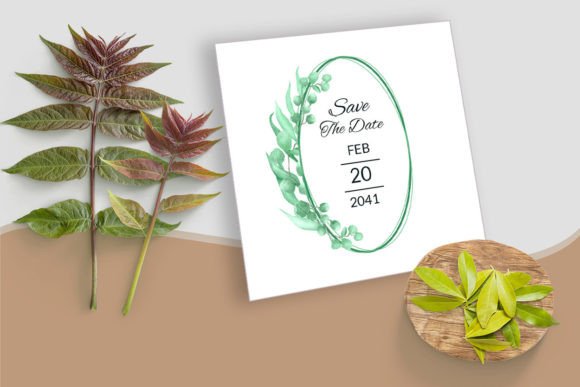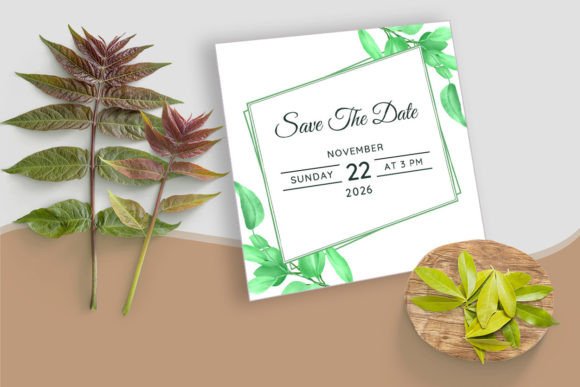
Elevate Your Event with a Geometric Wedding Card with Leaf Design
Planning a wedding or a significant celebration often feels like navigating a maze of aesthetic choices, where the invitation sets the tone for the entire event. A Geometric Wedding Card with Leaf Design offers a sophisticated bridge between modern minimalism and organic warmth, appealing to couples and hosts who want something unique without being overly ornate. This style combines crisp lines and shapes with the softness of botanical elements, creating a visual balance that feels both contemporary and timeless. However, moving from admiring a design to holding a finished, high-quality card in your hand involves several technical and creative decisions. Many enthusiasts jump into DIY projects or purchase templates without fully understanding the file formats or editing requirements, leading to frustration and subpar results.
Understanding the Versatility of Botanical Geometry
The appeal of this specific design niche lies in its adaptability. Unlike traditional heavy floral scripts that can feel dated, the geometric approach keeps the layout clean while the leaf motifs add necessary texture and life. This makes the template suitable not just for weddings, but also for birthday parties, bridal showers, and even corporate events seeking a touch of elegance. When you choose a template that features handwritten fonts alongside these geometric and floral elements, you are opting for a personalized feel that machine-generated text often lacks. The key is recognizing that the "look" is only half the battle; the functionality of the file you download determines how easily you can achieve that look.
Many buyers overlook the importance of file compatibility until they are deep into the editing process. A common scenario involves purchasing a bundle that promises ease of use, only to find that the user does not have the specific software required to open the master files. For instance, a package might include Adobe Illustrator (AI, EPS, PDF) files for professionals, alongside a CANVA template for beginners. If you do not have Adobe Creative Cloud, attempting to edit the AI file will be impossible without converting it, which often breaks the design layers. Conversely, relying solely on Canva without understanding its limitations regarding font licensing or precise color matching can lead to discrepancies between your screen and the final print.
Navigating File Formats and Software Choices
One of the most frequent mistakes creators make is assuming all digital downloads work the same way. When you acquire a DIY printable and editable template, you are typically receiving a zipped file containing multiple formats: JPG, PNG, PDF, EPS, AI, and a specific PDF with a Canva link. Each serves a distinct purpose. The JPG and PNG files are generally for digital sharing or previews, not for editing text. The EPS and AI files are vector-based, meaning they can be scaled infinitely without losing quality, which is crucial for professional printing. However, these require specialized knowledge.
For the majority of users, the Canva template is the most accessible route, yet it is often used incorrectly. A significant error occurs when users try to edit the design directly in the downloaded PDF instead of following the included guide. The "PDF CANVA" file included in your download is not the final product; it is a gateway. It contains the link you must click to import the design into your Canva account. Skipping this step and trying to manipulate the static PDF will result in a ruined layout. Furthermore, many forget that while Canva is free to sign up for, certain premium fonts or elements within a template might require a Pro subscription. Before committing to a design, check if the handwritten fonts featured are available on your free account or if you need to upgrade to avoid unexpected costs later.
Common Pitfalls in Customization and Printing
Even with the right software, the customization phase is where attention to detail separates a professional result from an amateur one. A prevalent issue is the misuse of fonts. Handwritten fonts add character, but they can be difficult to read if the text size is too small or if the color contrast is poor against the geometric background. Users often get carried away with changing colors to match a specific theme, inadvertently reducing legibility. For example, placing light grey text over a pale leaf pattern might look artistic on a bright monitor but will be unreadable once printed.
Another critical area where mistakes happen is sizing and resolution. The default size for many of these templates is 5.25" x 5.25" (13.335 x 13.335 cm), a popular square format. However, if you decide to resize the canvas in Canva to fit a different envelope, you risk distorting the geometric shapes or cutting off essential floral details. Unlike vector files in Illustrator, rasterizing elements in Canva during a drastic resize can lead to pixelation. Always verify the dimensions before you begin typing your guest list. Additionally, when saving your final file, choosing the wrong format can ruin the print quality. For home printing or professional services, always select PDF Print with "Crop marks and bleed" enabled if the printer requires it, rather than a standard JPG which compresses the image and lowers quality.
Strategies for a Flawless Execution
To ensure your Geometric Wedding Card with Leaf Design turns out perfectly, adopt a methodical approach. First, thoroughly review the included documentation. The guide provided in the zipped file is there to walk you through accessing the Canva link and setting up your free account if you don't have one. Take the time to read it before clicking anything. Second, perform a test print. Before ordering 100 cards or printing the whole batch at home, print a single copy on the actual paper stock you intend to use. This allows you to check color accuracy, font readability, and alignment. Colors often shift between RGB (screen) and CMYK (print), so seeing a physical proof is invaluable.
If you encounter issues, remember that support is usually available. Most creators of these templates are happy to help if you contact them regarding broken links or missing assets. Do not hesitate to reach out rather than trying to force a workaround that compromises the design. Finally, consider your audience. While the geometric and leaf motif is versatile, ensure the handwritten font aligns with the formality of your event. For a black-tie wedding, a very casual script might clash, whereas for a garden party or birthday, it adds the perfect relaxed vibe.
By understanding the tools at your disposal—whether it's the robust capabilities of Adobe Illustrator or the user-friendly interface of Canva—you can avoid the common traps of DIY design. The goal is to create an invitation that reflects the care and thought put into your event. With the right preparation, checking your file types, respecting the design constraints, and testing your output, you can transform a digital template into a tangible piece of art that delights your guests.